This post contains affiliate links. If you buy through them, Securely Sorted may earn a commission at no extra cost to you. As an Amazon Associate, we earn from qualifying purchases. Learn more.
If you have cable internet and your bill shows an equipment or Wi-Fi rental fee, buying your own modem (and router) usually pays for itself in about a year. Check your bill first, because some newer plans already include the equipment. Then buy a DOCSIS 3.1 modem from your provider’s approved list, plug it in, activate it, and return the rental.
Equipment fees are easy to miss. They sit on your bill every month, often for years. On some plans they add up to more than the price of buying the equipment yourself several times over. Here’s how to tell whether you’re paying one, and how to switch without losing your connection.
Step 1: Check your bill (2 minutes)
Look for a line like equipment fee, gateway rental, modem rental or Wi-Fi fee. As of fall 2026, typical charges include:
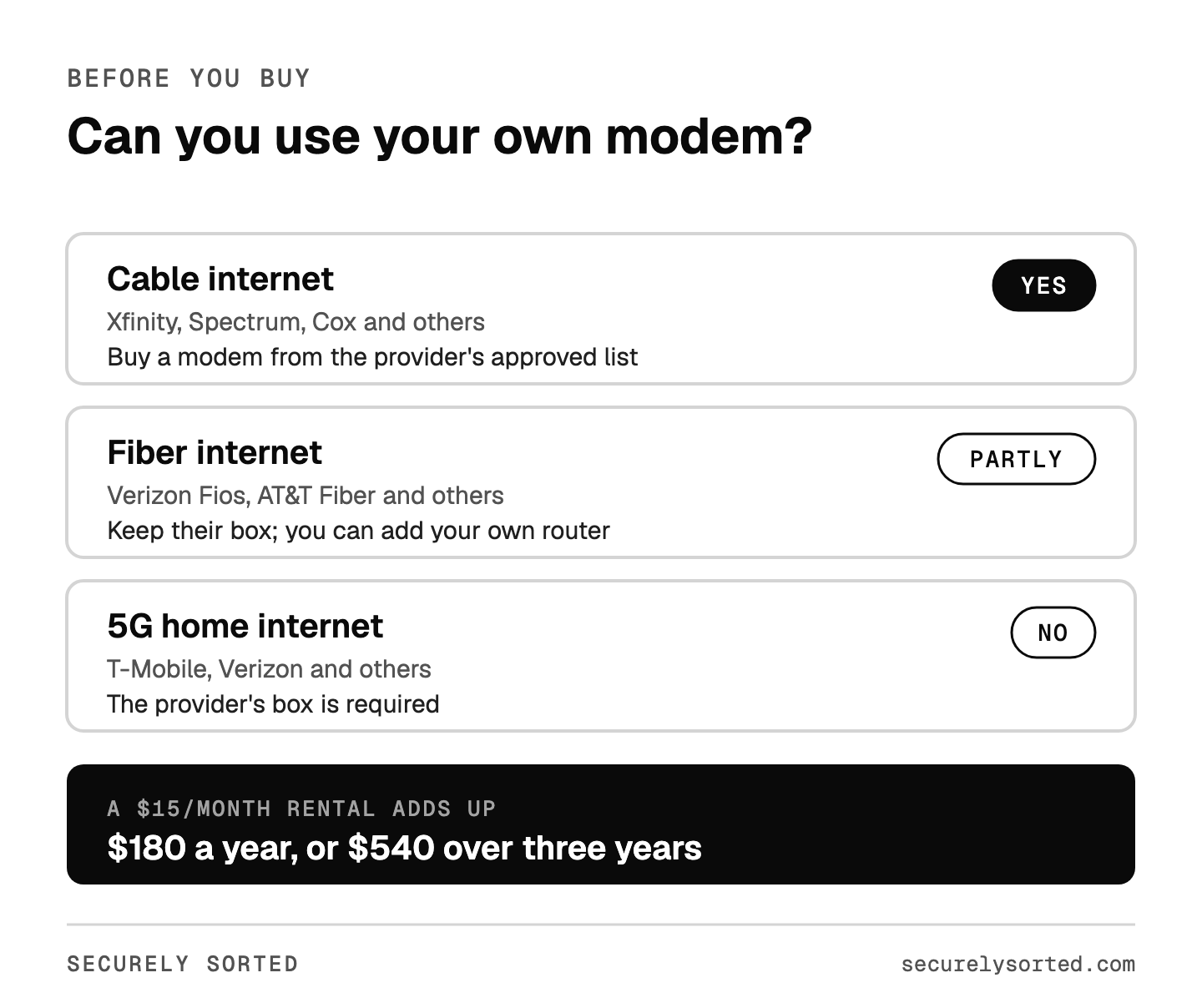
- Xfinity: often $15 a month for the gateway on older plans. Xfinity says its latest plans include the gateway at no extra cost, so check yours.
- Spectrum: the modem is included, but there’s a separate monthly fee if you rent its Wi-Fi router.
- Cox: commonly $15 a month for the Panoramic Wifi gateway.
- Verizon Fios: current plans include the router; some older plans charged a monthly rental.
- AT&T Fiber: the gateway is included and required, so there’s no rental to remove.
If there’s no rental line on your bill, you’re already set, and you don’t need to buy anything to save money.
Step 2: Know what you’re replacing
- Modem: connects your home to your provider’s network.
- Router: creates your Wi-Fi network and connects your devices.
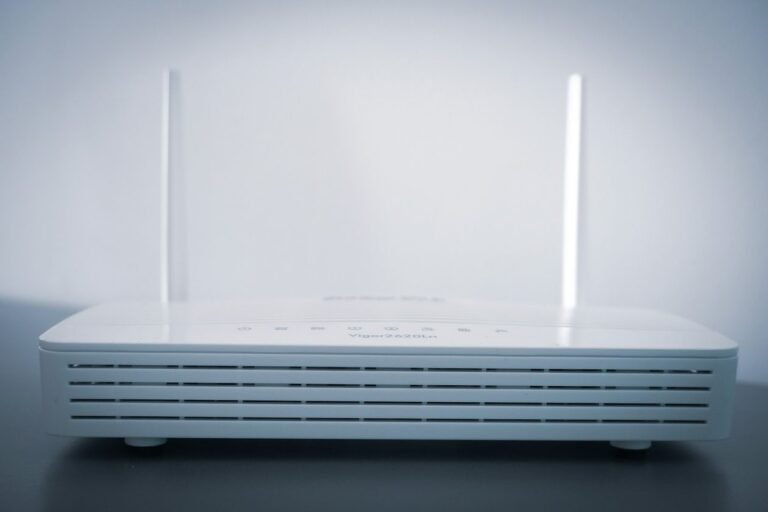
- Gateway: a modem and router in one box. This is what most providers rent out.
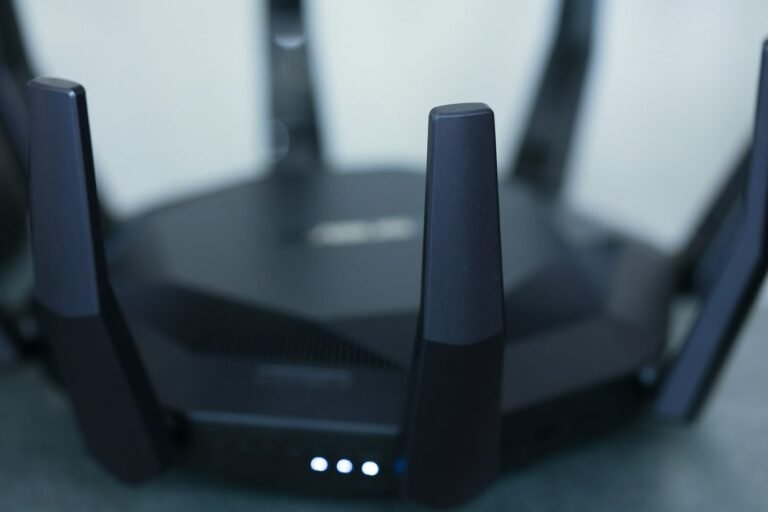
To replace a rented gateway, you can buy a modem plus a separate router (more flexible, and you can upgrade the Wi-Fi later without touching the modem) or a modem/router combo (one box, simpler). If you only rent the router, as with Spectrum, you just need your own router.
Step 3: Pick a modem from your provider’s approved list (10 minutes)
Your provider has to approve a modem before it will work on its network. Use the official lists:
When choosing from the list:
- Get DOCSIS 3.1. It’s the current standard for cable internet. Providers have been phasing out older DOCSIS 3.0 modems, so a 3.0 model may not last.
- Match your speed. For plans over 1 gig, look for a modem with a 2.5 Gbps Ethernet port.
- Have phone service through your provider? You’ll need a modem that supports voice, or you may need to keep the provider’s equipment. Check the approved list for voice models.
Popular approved models to compare: DOCSIS 3.1 cable modems on Amazon. Always confirm the exact model is on your provider’s list before buying.
Step 4: Add a router
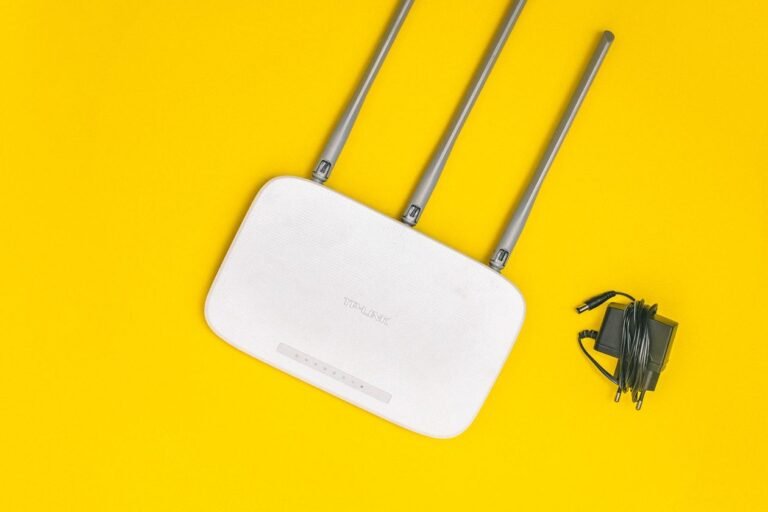
If you bought a modem without Wi-Fi, you’ll need a router too. Look for Wi-Fi 6 or newer with automatic updates. Our guide Is Your Router Too Old? covers what to look for. Check price on Amazon.
Step 5: Swap it in and activate (20 to 30 minutes)
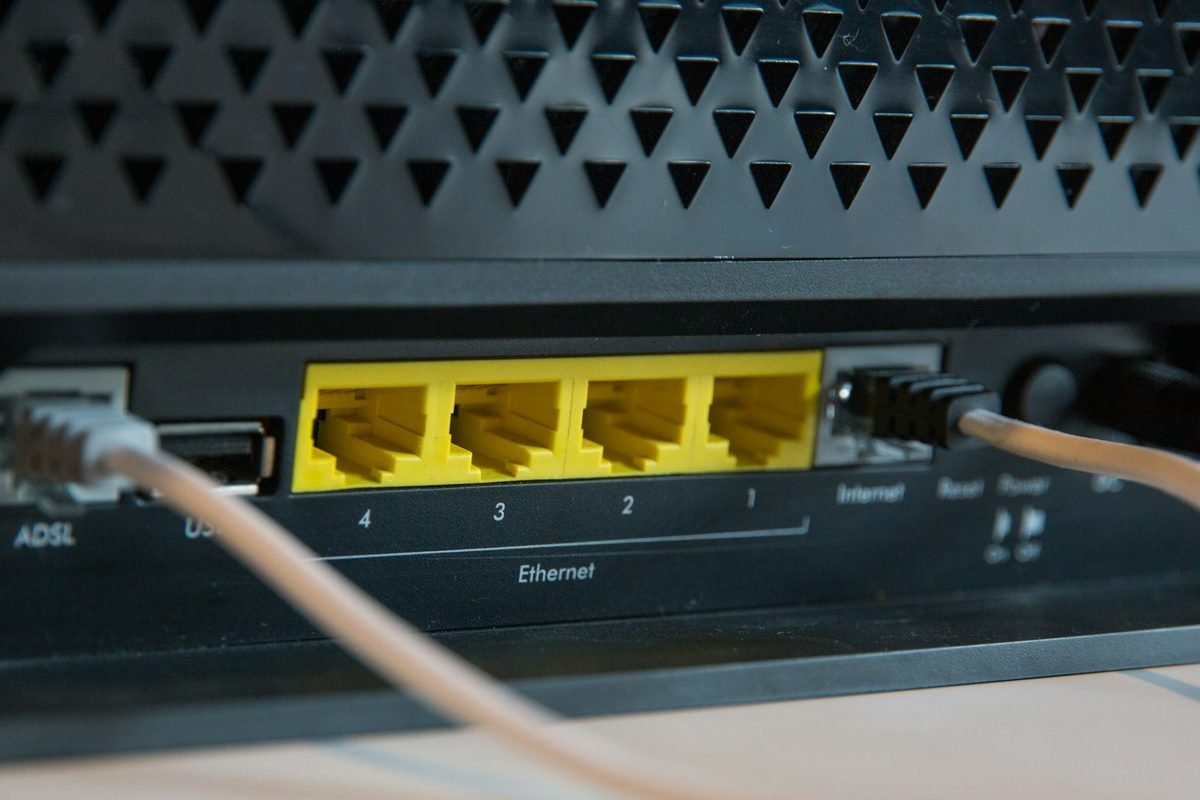
- Unplug the rented gateway and connect the coax cable to your new modem.
- Connect the modem to your router with an Ethernet cable, then power on the modem first and the router second.
- Activate the modem using your provider’s app or website, or by calling. They’ll usually ask for the modem’s MAC address, which is printed on its label.
- Set up the router, then secure it with our 20-minute router checklist.
Step 6: Return the rental and check your next bill
Return the rented equipment the way your provider asks (a store, a UPS drop-off or a prepaid box) and keep the receipt. Then check your next bill to make sure the rental fee is gone. If it isn’t, call with your return receipt in hand.
When you own the equipment, keeping it updated and troubleshooting it is on you. Xfinity, for example, says customers who use their own devices are responsible for keeping them updated and secure. Most modems update automatically from the provider, but your router is yours to maintain.
Before you buy anything, call your provider and ask two questions: “Am I paying an equipment fee?” and “Is there a current plan that includes the equipment for the same price?” Sometimes switching plans removes the fee with no new hardware at all. If not, buying your own is one of the easiest ways to cut a monthly bill for good.
If you have cable internet and pay a monthly equipment fee, a DOCSIS 3.1 modem from your provider’s approved list, plus a good router, usually pays for itself in about a year. Fiber and 5G customers usually can’t replace the provider’s box, but can often add their own router. Check your bill first, then decide.
Sources: Xfinity: Using your own modem, Spectrum: Using your own equipment, Cox: Certified cable modems, ConnectCalifornia: Xfinity equipment fees, ConnectCalifornia: Spectrum Wi-Fi fee, Clark.com: Buying vs renting a modem.
Mcarthur, Founder of Securely SortedI’ve spent 5+ years in hands-on technical support, and now I’m writing the guides I wished existed.