This post contains affiliate links. If you buy through them, Securely Sorted may earn a commission at no extra cost to you. As an Amazon Associate, we earn from qualifying purchases. Learn more.
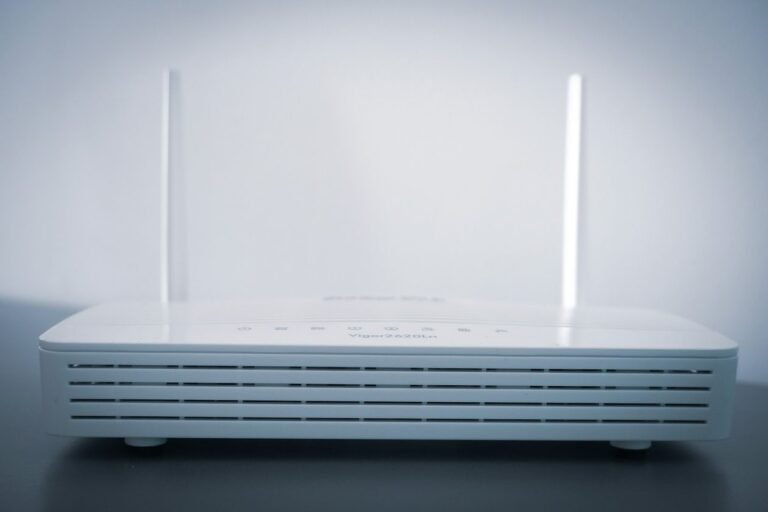
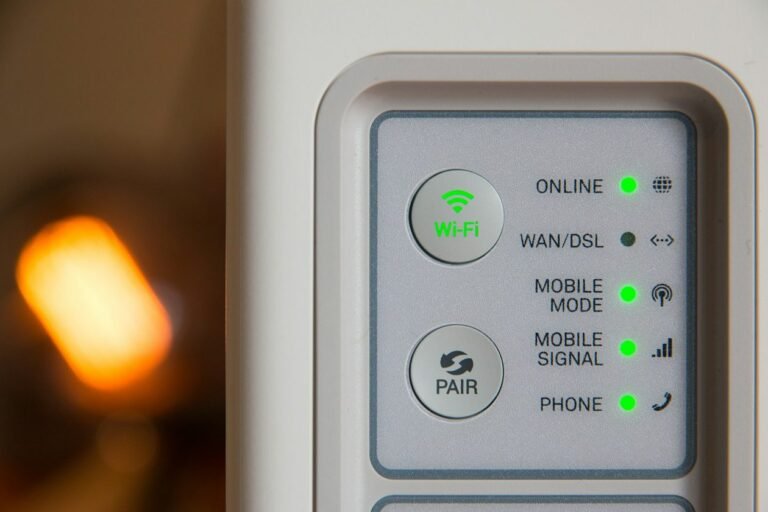
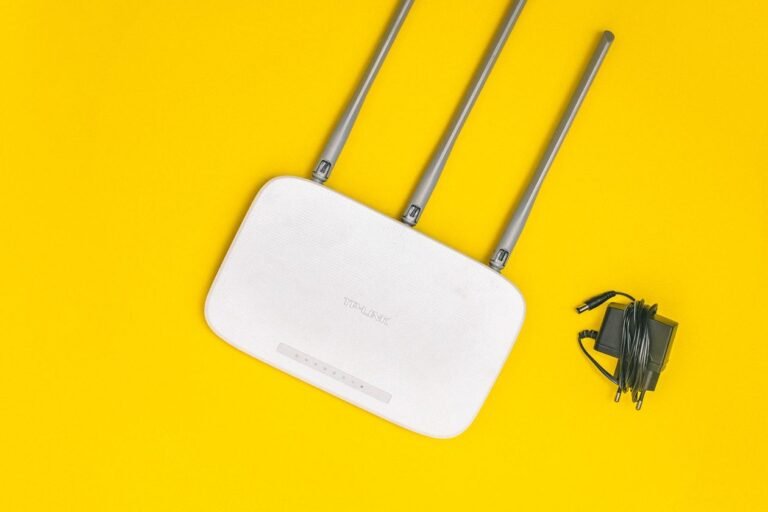
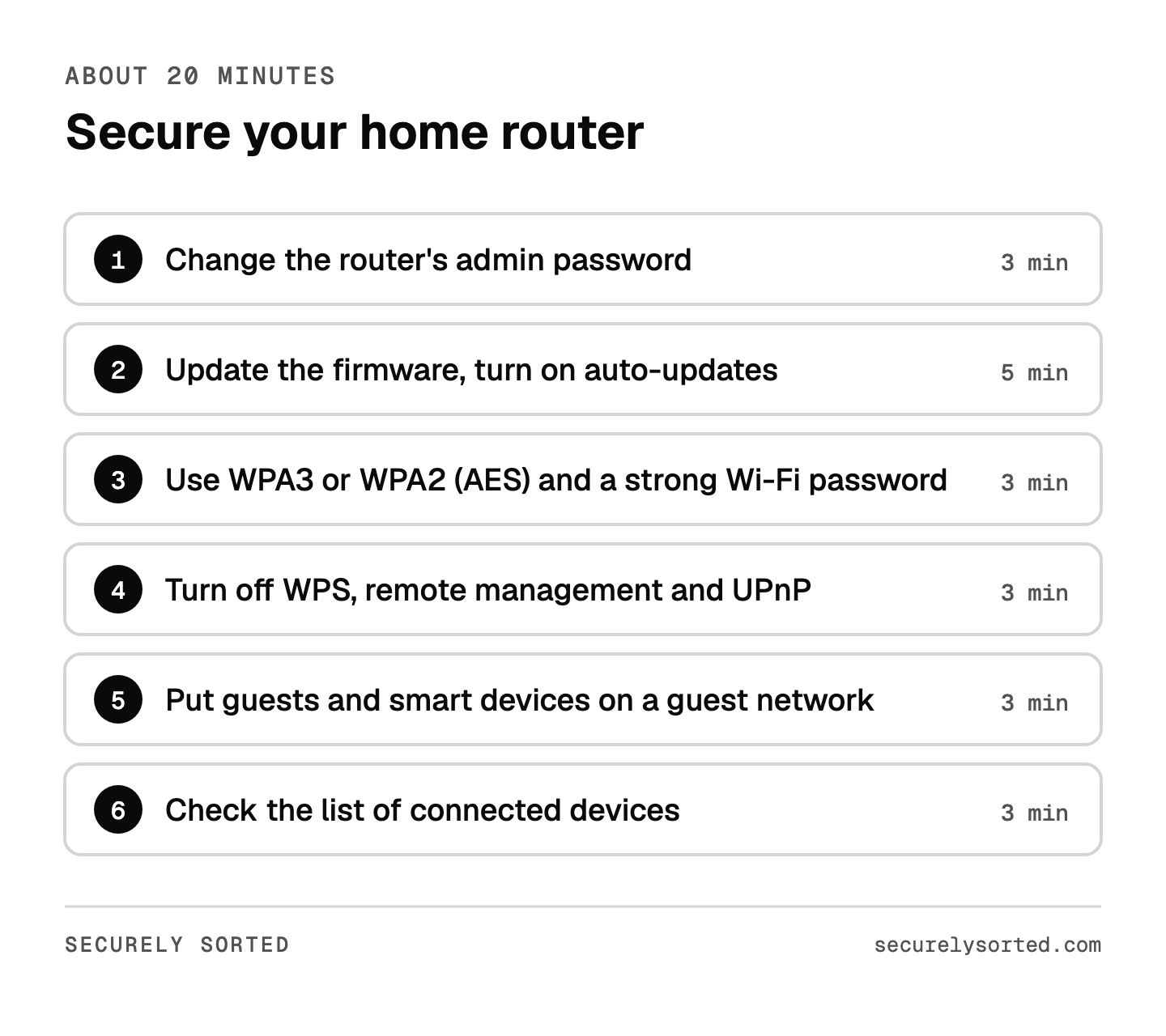
Every phone, laptop, TV and camera in your home goes online through one box: your router. Many people never change a single setting on it after the installer leaves. Six quick changes, about 20 minutes in total, close the doors attackers use most.
Before you start: get into your router’s settings
You’ll need to sign in to your router’s settings page. There are three common ways in:
- The router’s app. Many newer routers and mesh systems (like eero, Google Nest Wifi, Orbi and Deco) are managed from a phone app. If you set yours up with an app, start there.
- A web address. On a computer connected to your Wi-Fi, type the address printed on the router’s label into your browser. It’s often something like
192.168.1.1or192.168.0.1. - Your internet provider’s app. If you rent your router from your provider, its app or website usually has the Wi-Fi settings.
The sticker on the bottom or back of the router usually lists the sign-in address and the default login.
Step 1: Change the router’s admin password (3 minutes)
This is the password for the router’s settings, not your Wi-Fi password. If someone gets into the settings, they can change everything else, including your Wi-Fi password, and undo every other step here. Default admin logins are often printed on the router or easy to look up online, so change it to a long, unique password. If the router lets you change the admin username too, do that as well.
Save the new password in your password manager right away, so you’re not locked out next time.
Step 2: Update the firmware and turn on automatic updates (5 minutes)
Firmware is the router’s built-in software. Updates fix security holes that attackers already know about. Look for a section called Firmware, Update or Administration, install anything waiting, and turn on automatic updates if your router offers it.
If you can’t find any updates at all, check the maker’s support page for your model. If it says the router is no longer supported, see Is your router too old? below.
Step 3: Use WPA3 or WPA2 (AES) and a strong Wi-Fi password (3 minutes)
In the wireless or Wi-Fi settings, set the security type to WPA3 Personal. If your devices can’t connect with WPA3, use WPA2 Personal (AES) or a “WPA2/WPA3” mixed mode. Avoid anything labeled WEP, WPA (without a number) or TKIP, which are outdated.
While you’re there:
- Give the Wi-Fi a long password that isn’t used anywhere else. A few random words strung together works well and is easy to type on a TV.
- Rename the network if it still has the default name. Skip your name or address, and anything that gives away the router’s brand.
Step 4: Turn off WPS, remote management and UPnP (3 minutes)
These three features trade security for convenience, and most homes don’t need them:
- WPS (Wi-Fi Protected Setup): the push-button or PIN way of joining a network. It makes it easier for someone to get onto your Wi-Fi without the password.
- Remote management: lets the router’s settings be changed over the internet. Turning it off means changes can only be made from inside your home network. (If your router is managed through a phone app, look for this setting in the app instead.)
- UPnP (Universal Plug and Play): lets devices open connections through your router on their own. Attackers can abuse it to reach devices inside your home. If a game console or app stops working afterward, you can turn it back on briefly for setup, then off again.
Step 5: Put guests and smart devices on a guest network (3 minutes)
Most routers can run a separate guest network with its own name and password. Turn it on, and use it for visitors and for smart home gadgets like cameras, plugs, bulbs and TVs. Those devices often get fewer security updates than your phone or laptop, so keeping them apart from your main devices limits the damage if one is ever compromised.
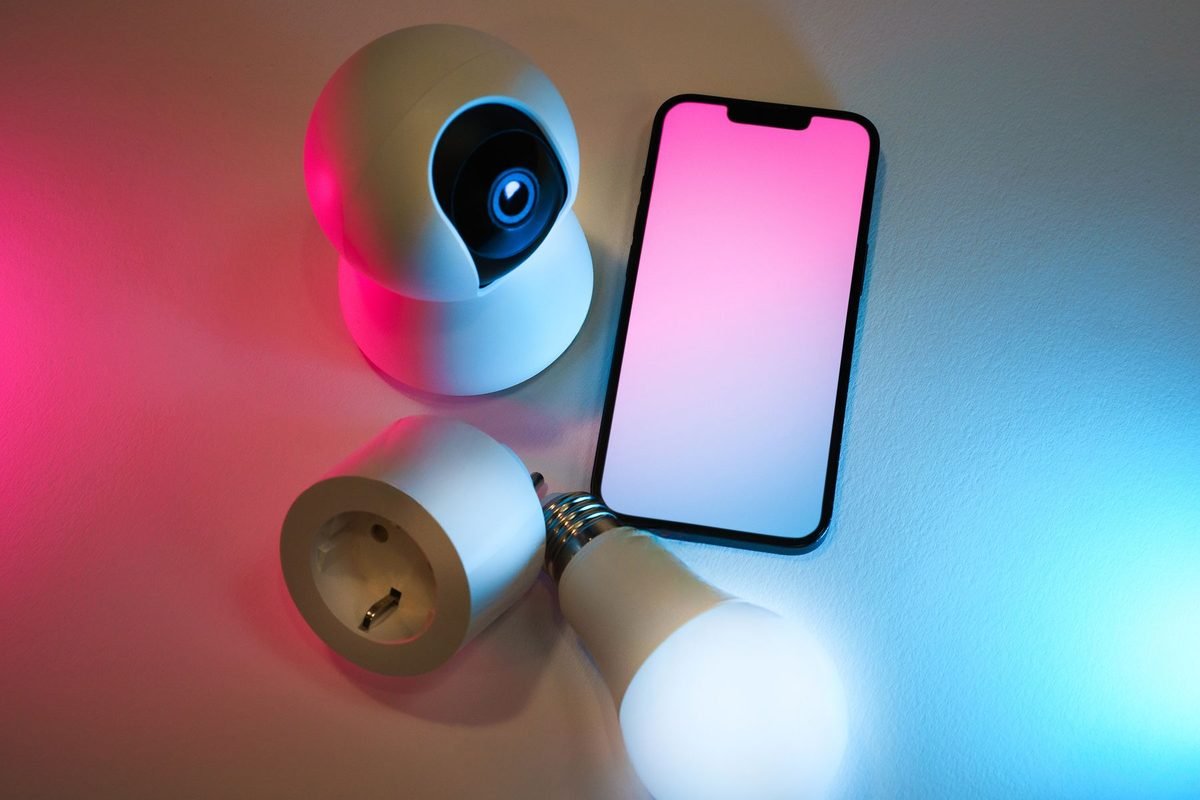
Setting up cameras? Our guide to home security cameras with no monthly fees covers what else to check.
Step 6: Check the list of connected devices (3 minutes)
Find the page called something like Connected devices, Clients or Device list. Look for anything you don’t recognize. Many devices show up with odd names, so turn things off one at a time if you’re unsure. If something still doesn’t belong, change your Wi-Fi password (Step 3) and every device you own will need to reconnect with the new one.
The NSA’s home network guide suggests restarting your router regularly, such as once a week. It only takes a minute, and many routers can do it on a schedule.
Is your router too old?
Routers don’t last forever. Once a maker stops releasing updates for a model, any new security holes stay open for good. In 2025 the FBI warned that criminals were taking over old, unsupported routers (including several older Linksys and Cisco models) and renting them out to hide their own activity.
Search for your router’s model number plus “end of life” or check the maker’s support page. If it no longer gets updates, it’s time for a replacement. Check price on Amazon.
If you rent your router from your internet provider, ask them whether it still gets security updates. Some providers update their equipment for you automatically.
It’s tempting to skip the first step because the router “already works.” But the admin password is the master key to everything else on this list. If you only have five minutes today, change that password and turn on automatic updates. Then come back for the rest.
Your router protects every device in your home, so it deserves 20 minutes of attention. Change the admin password, keep it updated, use WPA3 or WPA2, turn off the features you don’t need, and give your guests and gadgets their own network. If your router no longer gets updates, replace it.
Next: using Wi-Fi away from home? Read How to Stay Safe on Public Wi-Fi. Running a business? See the Small Business Security Checklist.
Sources: CISA: Securing Your Home Wi-Fi, FTC: How To Secure Your Home Wi-Fi Network, NSA: Best Practices for Securing Your Home Network, BleepingComputer: FBI warning on end-of-life routers.

Mcarthur, Founder of Securely SortedI’ve spent 5+ years in hands-on technical support, and now I’m writing the guides I wished existed.