This post contains affiliate links. If you buy through them, Securely Sorted may earn a commission at no extra cost to you. Learn more.
Two-factor authentication (2FA) adds a second lock to your accounts: your password, plus something only you have, like a code from an app or a tap on your phone. It stops most account takeovers even when a password leaks. Turn it on for email, banking, and your password manager first.
What two-factor authentication actually does
A password proves you know something. Two-factor authentication adds a second step that proves you have something, like your phone or a small security key. If a criminal steals or guesses your password, they still can’t get in without that second piece.
You’ll see it called 2FA, two-step verification, or multi-factor authentication (MFA). They all mean roughly the same thing: one extra step at login that a stranger with just your password can’t complete.
The three common ways to get that second step
- Text message (SMS) codes. The most common and the easiest to set up, but the weakest. Criminals can sometimes redirect your phone number (called SIM swapping) and intercept the code. Better than nothing, worth upgrading from when you can.
- Authenticator apps. Apps like Google Authenticator or Microsoft Authenticator generate a fresh code every 30 seconds, right on your phone, with nothing to intercept over the phone network. A solid middle ground most people can use today.
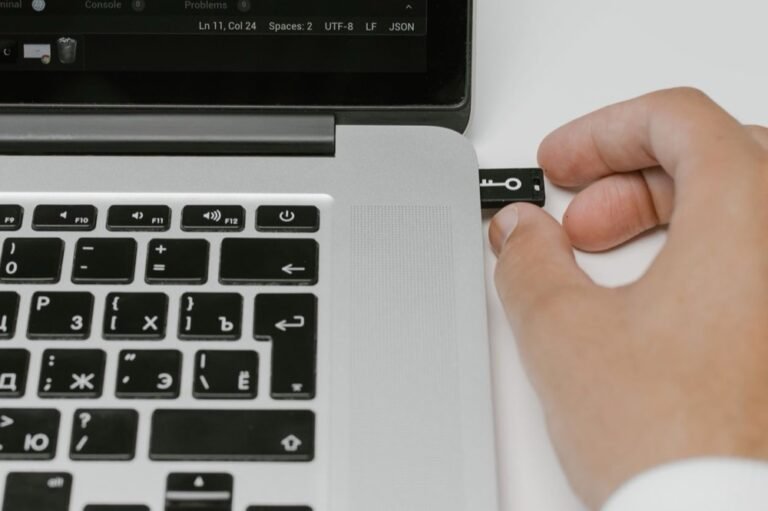
- Security keys. A small physical key you plug in or tap. The strongest option because there’s no code to type or phish. Our security keys guide covers who should consider one.
How to turn it on
- Open your account’s security settings. Look for “Two-factor authentication,” “2-step verification,” or “Login and security.”
- Choose an authenticator app over text messages when you’re offered the choice. If text message is the only option, still turn it on. Some protection beats none.
- Save your backup codes. Almost every service gives you one-time backup codes when you set up 2FA. Write them down or store them somewhere safe that isn’t the same device, in case you lose your phone.
- Repeat for your most important accounts. It takes about two minutes per account once you know the pattern.
Which accounts to protect first
- Your main email. Whoever controls your email can reset almost every other password you own. Start here.
- Your password manager. It’s the one account protecting all your others, so it deserves the strongest login you can give it.
- Banking and payment apps. Most banks support 2FA already; it’s usually just a setting to switch on.
- Social media. A hijacked account can be used to scam your friends and family, not just you.
If you only turn on two-factor for one account today, make it your email. I’d rather see someone with 2FA on just their email and password manager than spread thin across ten accounts with none. Start with the accounts that would hurt the most if someone got in, then work outward from there as it becomes a habit.
A password manager is the easiest place to turn on 2FA first, and most include a built-in authenticator. See Password Managers Explained to get set up, or read Security Keys Explained if you want the strongest option available.
Sources: CISA: Multi-Factor Authentication, NIST: Back to Basics, Multi-Factor Authentication, FTC Cybersecurity Basics.

Mcarthur, Founder of Securely SortedI’ve spent 5+ years in hands-on technical support, and now I’m writing the guides I wished existed.